Interactive sessions
It is not allowed to run any type of calculation into the login nodes, in order to avoid risks that may effect other users or the global behaviour of the cluster.
For that reason, for users that must work interactively with a software, we have enabled an option to book the required resource to run in an interactive mode into a compute node.
The interactive command
The interactivecommand enable the user to ask for a desired amount of resources, such a number of processors, memory, TRES, etc.
The user can check all the options by executing
[user@agamede:~]$ interactive --help
/home/users/slurm/bin/interactive: illegal option -- -
Usage: interactive [-p] [-a] [-N] [-n] [-c] [-m] [-r] [-J] [-e] [-t] [-X] [-f] [-C]

Optional arguments:
 -p: partition (default: vfast, values vfast p_fast p_medium p_slow p_sslow)
 -N: number of nodes (default: none)
 -n: number of tasks (default: 1)
 -c: number of CPU cores per task (default: 1)
 -f: node family (default: amd192, values in arina:amd192,xeon40 , in arina-zahar: xeon28, xeon20)
 -m: amount of memory (GB) per core (default: 1 [GB])
 -e: email address to which the begin session notification is to be sent
 -r: specify a reservation name
 -w: target node
 -g: add gres. E.g: gpu:1
 -J: job name
 -t: requested time in the format HH:MM:SS . Notice: it should be in accordance to queue limits
 -X: enable x11 display export.
 -C: enable to execute a command once the allocation is done.
 -b: locate the best node (only for default -N 1 )
     NOTICE: the -b option must be placed at the end
DEFAULT : interactive -n 1 -c 1 -m 1 -J interactive -p vfast -t 4:00:00
example : interactive -p 20_cores -c 4 -J MyFirstInteractiveJob
example : interactive -c 4 -J MyFirstInteractiveJob

Written by: Alan Orth <a.orth@cgiar.org>
Modified by: Jordi Blasco <jordi.blasco@hpcnow.com>;
      and Joaquim Jornet < joaquim.jornet@ehu.es>;
Once the resources are granted, the user can execute the software like from the command line.
Remember
You must first load the desired module in order to set the environment variables needed for your calculation.
Examples
By default, if you execute the interactive command without any option, it will request to allocate just 1 CPU and 1Gb of memory.
This amount of memory usually is not enough to run your tests and you must select a larger amount.
Here below, we show some examples depending on the needs of your calculation.
Important
It is important to do not run from the $HOME (/home/$USER) directory. Instead, create a temporally directory to /scratch/$USER/$SLURM_JOB_ID, or /gscratch/$USER/$SLURM_JOB_ID, copy your data and move to that directory, and execute from there. Finally transfer your data back.
In order to request for N cpus and M Gb of memory per core:
[user@agamede:~]$ interactive  -n 4 -m 3 -J myjob
Running salloc command:
/usr/bin/salloc  -n 4 -c 1 --mem-per-cpu=3072 -J myjob -p vfast -t 4:00:00
salloc: Pending job allocation 345665
salloc: job 345665 queued and waiting for resources
salloc: job 345665 has been allocated resources
salloc: Granted job allocation 345665
salloc: Waiting for resource configuration
salloc: Nodes na02 are ready for job
[user@na02:~]$
You can see that the prompt of the host changes, from agamede to the name of a compute node, for instance : na02 .
Now the user can load any available module, and execute the software from the command line.
[user@na02:~]$ mkdir /scratch/$USER/$SLURM_JOB_ID
[user@na02:~]$ cp helloworld.c to /scratch/$USER/$SLURM_JOB_ID
...
[user@na02:/scratch/$USER$/345665]$ module load foss/2025a
[user@na02:/scratch/$USER/345665]$ mpicc -o helloworld.exe  helloworld.c
...
[user@na02:/scratch/$USER/345665]$ cp helloworld /home/$USER/bin/
To request for N cpus , M Gb of memory per CPU and 1 NVIDIA A100 GPU card:
[user@agamede:~]$ interactive  -n 4 -m 3 -J mygpujob -g gpu:A100:1
Running salloc command:
/usr/bin/salloc  -n 4 -c 1 --mem-per-cpu=3072 -J mygpujob -p vfast -t 4:00:00 --gres=gpu:A100:1
salloc: Pending job allocation 345737
salloc: job 345737 queued and waiting for resources
salloc: job 345737 has been allocated resources
salloc: Granted job allocation 345737
salloc: Waiting for resource configuration
salloc: Nodes nagpu01 are ready for job
[user@nagpu01:~]$
You can see that the prompt of the host changes, from agamede to the name of a compute node, for instance : nagpu01 .
Now the user can load any available module, and execute the software from the command line.
[user@nagpu01:~]$ mkdir -p /scratch/$USER/$SLURM_JOB_ID
[user@nagpu01:~]$ cp helloworld.cuda /scratch/$USER/$SLURM_JOB_ID
[user@nagpu01:~]$ cd /scratch/$USER/$SLURM_JOB_ID
[user@nagpu01:~]$ module load CUDA/12.8.0
[user@nagpu01:~]$ which nvcc
/eb/x86_64/software/CUDA/12.8.0/bin/nvcc
[user@nagpu01:~]$ nvcc -g -gencode arch=compute_80,code=sm_80 -lcudart -lcufft -lcublas -o helloworld helloworld.cuda
[user@nagpu:/scratch/$USER/345665]$ cp helloworld /home/$USER/bin/
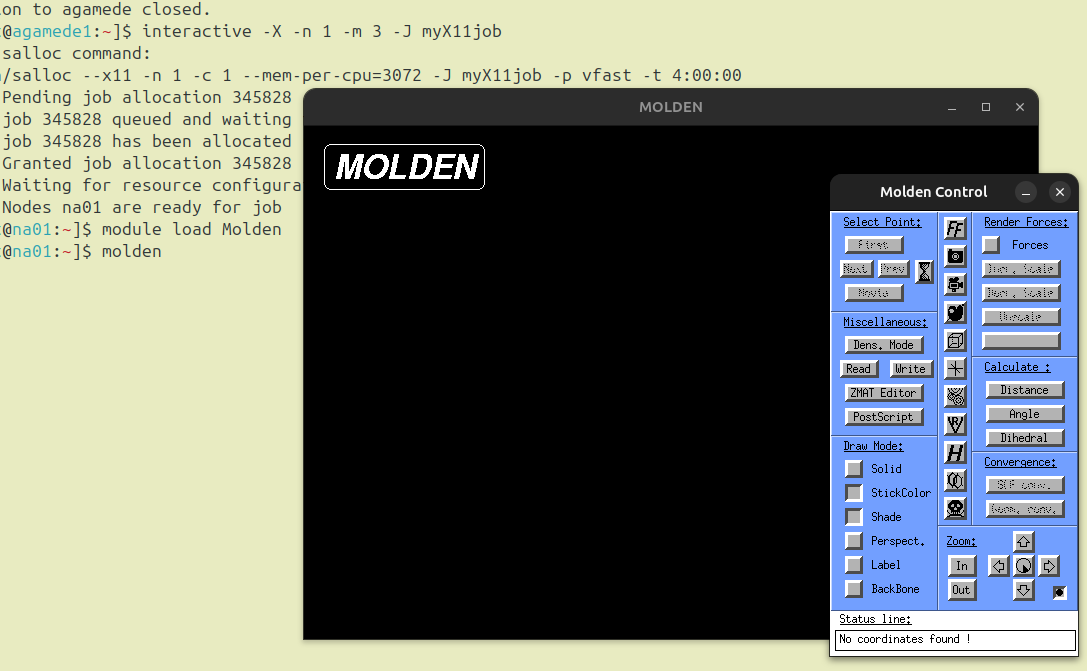
In order to request exporting the X11 display, one request for 1 CPU and M Gb of memory per core:
[user@agamede:~]$ interactive -X -n 1 -m 3 -J myX11job
Running salloc command:
/usr/bin/salloc --x11 -n 1 -c 1 --mem-per-cpu=3072 -J myX11job -p vfast -t 4:00:00
salloc: Pending job allocation 345828
salloc: job 345828 queued and waiting for resources
salloc: job 345828 has been allocated resources
salloc: Granted job allocation 345828
salloc: Waiting for resource configuration
salloc: Nodes na01 are ready for job
[user@na01:~]$
Now the user can load any available module, and execute the software from the command line.
[user@na01:~]$ module load Molden
[user@na01:~]$ molden
And the window opens like:
In order to finish an interactive session, the user just have to execute the exit command.
[user@na02:/scratch/$USER/345665]$ exit
exit
srun: error: na02: task 0: Exited with exit code 130
srun: Terminating StepId=345665.interactive
salloc: Relinquishing job allocation 345665
salloc: Job allocation 345665 has been revoked.
[user@agamede:~]$